
Text alternatives - a decision tree
To help you write better text alternatives for images, our decision tree asks three main questions. It guides you in choosing a short, long or blank text alternative.
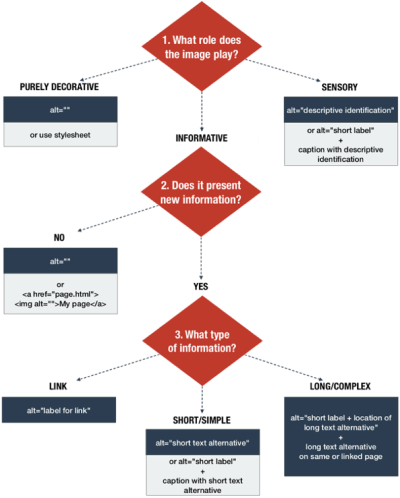
1. What role does the image play?
Purely decorative?
If the image plays a purely decorative role on the page, use a blank text alternative: (alt=""). A screen reader will then ignore it.
If you use decorative images regularly, ask your web designer or developer to create a style you can use to include the image via a style sheet.
NOTE: In Word documents (not web pages or PDF documents) screen readers won’t ignore decorative images. So you need to use a short text alternative—something as simple as ‘decorative’ will do. Then a screen reader user knows they’re not missing any important content.
Sensory?
If the image provides a 'specific sensory experience' (for instance, if it’s a work of art), write a 'descriptive identification' as the text alternative or caption. Include the title of the work, the artist’s name, the year it was created, and the medium.
If you use the descriptive identification as the caption, you'll need a short label as the ALT text. Try the title (alt="Title of work") or use a label that makes sense when read with the caption (alt="Photo of"). Don’t leave the ALT blank, or a screen reader user may not realise the caption belongs to an image.
Informative?
If the image is informative, consider the second question.
2. Does the image present new information?
No, it repeats information
If the image merely repeats information use a blank text alternative: (alt=""). This saves a screen reader user from listening to content twice.
No, it repeats a link
If the image is a link and repeats a nearby text link, wrap the link around the image and the text to create a single link. Then use a blank text alternative for the image: (<a href="page.html"><img alt="">My page</a>). If you're unsure of how to do this, talk to your web team.
Yes
If the image presents new information, consider the third question.
3. What type of information does the image communicate?
A link
If the image is a link, write something that identifies the linked content just as you would when adding a text link: (alt="label for link").
Short, simple information
If the image contains a short or simple message use that as your ALT text: (alt="short text alternative").
If you’re using a caption for the image, don’t repeat the caption as the ALT text. Instead, use a short label that makes sense when read with the caption.
Longer or more complex information
When an image presents longer or more complex information, write a long text alternative. You can add this to:
- the same page as the image (as I've done here for the decision tree image)
- a new page, linked
- below the image (I could have added a link below the decision tree image, saying "text version of the decision tree")
Related articles
Write better text alternatives
Improve your website's accessibility and SEO. Join our course - learn how to write useful text alternatives for images.
Book a course at https://4syllables.com.au/